UE4 on Cortex (28:49)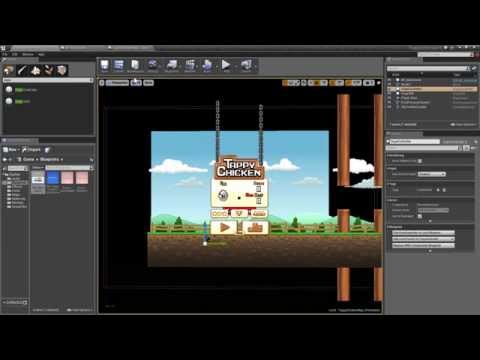 |
Customize Tappy Chicken (2:50)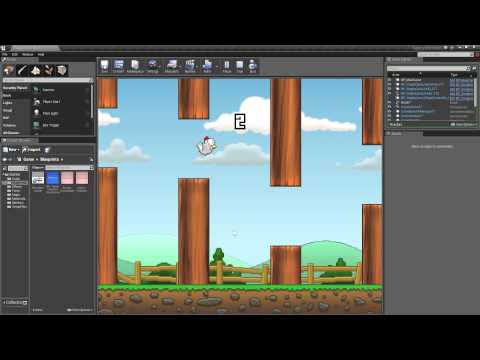 |
-
First you need an Unreal account
-
Link your Github account with your Unreal account per the wiki instructions
-
Only after linking your Github account will you have access to the UE4 Source.
-
After linking your Github account, you should have access to the
CortexBranches -
4.10-Cortex branch for the
CortexFork of UE4 -
4.9-OUYA branch for the
CortexFork of UE4 -
4.8-OUYA branch for the
CortexFork of UE4 -
4.7-OUYA branch for the
CortexFork of UE4 -
4.6-OUYA branch for the
CortexFork of UE4 -
Quick Link: Building the Cortex Fork of UE4
-
Quick Link: Getting Started in the UE4 Editor
-
Quick Link: Deploying to the Forge TV
-
Quick Link: Tappy Chicken Example
-
Quick Link: Virtual Controller Example
-
Quick Link: In-App-Purchase Example
- If you run and the screen is just all black or weird it could be a few issues:
-
Did you compile for
Development Editor/Win64,Development Client/Android, and runcopy_client_for_game.cmd? -
Did you disable Mobile HDR lighting?
-
Did you add a
Camerato your scene and set a defaultLevel? -
Did you install the specific version of the Tegra Android Development Pack? A specific version of TADP needs to be installed which is found in the
Engine\Extras\Android\folder.

-
Get the Unreal Engine - Unreal Engine and Source, All for 5% of Revenue after more than $3k gross revenue
-
Unreal Forum Post - Unreal - Tracking
CortexPlugin process and requests for info -
UE4 Video Tutorials - Unreal - Unreal 4 Documentation
-
UE4 Video Playlist - Unreal - Epic Video Playlists
-
UE4 Programming Playlist - Unreal - Introduction to UE4 Programming Playlist
-
Android Quick Start - Unreal - Documentation steps for getting started with Unreal
-
Android Reference Guide - Unreal - Environment variable setup for Android publishing
-
Blueprints - Unreal - Visual Scripting
-
Introduction to Paper2D - Unreal - Intro to 2D sprites
-
Unreal Chat - #UnrealEngine on Freenode
-
C# for Unreal Engine - Write gameplay, AI, UI elements, and more with C#
-
Zeef Resource Page - Tons of Unreal resource links
-
Master Unreal Blueprints - Books and other resources for mastering Blueprints
-
Syncing Remote Fork - As EpicGames releases branch updates, the fork needs to be synced
-
Training Streams happen Tuesdays for Q&A training sessions.
-
Weekly Unreal Twitch Stream
-
Game Jams - Epic hosts monthly game jams.
-
Answer Hub is the best way to get your questions about UE4 answered.
-
Coding Documentation: Delegates
-
Coding Documentation: Functions
-
Coding Documentation: Properties/Core Data Types
-
Artificial Intelligence - AI Overview and Behavior Tree Quick Start Guide
-
JNI Spec - UE4 to Android communication uses the JNI specification
-
BLUI - BLUI is an open-source HTML renderer to make fancy UIs by embedding a browser into UE4
As UnrealEngine releases occur, the branch is forked and then merged into a corresponding 4.X-Cortex branch.
Rebranching releases are handled for you, and the following documents the process.
Remote:
-
Add a GIT
remoteto the fork ofEpicGames\UnrealEngineand copy the latest 4.X branch into a new local 4.X branch. -
Remove the GIT remote to
EpicGames\UnrealEngineand push the new branch. -
Create a new branch from the
4.Xbranch to4.X-Cortex.
Native Plugin Changes:
-
Merge
Engine\Build\Android\Java\jni\Application.mkto ensure that Android API Level 16 or better can use theCortex SDK. -
Copy
ouya-sdk.jarto the Android libs folderEngine\Build\Android\Java\libs.
Java Engine Changes:
- Manually merge Android Java source changes
Engine\Build\Android\Java\src.
C++ Launcher Changes:
- Manually merge JNI and Launch changes
Engine\Source\Runtime\Launch\Private\Android.
C++ Engine Blueprints:
-
Manually merge Engine header blueprints
Engine\Source\Runtime\Engine\Classes\OuyaSDK. -
Manually merge Engine source blueprints
Engine\Source\Runtime\Engine\Private\OuyaSDK.
Build:
-
Rerun
GenerateProjectFiles.batto generateUE4.sln. -
Open
UE4.slninVisual Studio 2015. -
Build
Development EditorforWin64. -
Build
DevelopmentforAndroid. -
Launch
Development EditorforWin64. -
Build and test the example apps.
Commit:
- Add to
.gitignoreso thatouya-sdk.jarcan be committed.
!/Engine/Build/Android/Java/libs/ouya-sdk.jar
- Download the 4.10-Cortex branch to get the
Cortex forkof theUnreal Engine
git clone -b 4.10-Cortex https://github.com/tgraupmann/UnrealEngine
Cloning into 'UnrealEngine'...
remote: Counting objects: 243979, done.
remote: Compressing objects: 100% (53/53), done.
remote: Total 243979 (delta 8), reused 13 (delta 6)
Receiving objects: 100% (243979/243979), 291.48 MiB | 2.50 MiB/s, done.
Resolving deltas: 100% (172998/172998), done.
Checking connectivity... done.
Checking out files: 100% (26995/26995), done.
- Important: The 4.6 release introduces a new system for downloading binary dependencies - just run the 'Setup' script in the root of your UE folder to get started. See the README or forum post for more information.

- Follow the Build the Engine steps to generate the Visual Studio solution.

- Open the
UE4.slnin Visual Studio

- Add
Solution ConfigurationsandSolutions Platformsto the Visual Studio Toolbar to easily target theUE4build platforms.

- Build the
Development Editoron theWin64platform which will build theUnrealEngine\Engine\Binaries\Win64\UE4Editor.exeeditor application.

- Build the
Development Clienton theAndroidplatform which will build theUnrealEngine\Engine\Binaries\Android\UE4Client-armv7-es2.sonative library.

- Run the script
UnrealEngine\Engine\Binaries\Android\copy_client_for_game.cmdto copy the native library as theUE4Game-armv7-es2.sodependency to use when building BluePrint projects.

- Launch the
UE4editor fromUnrealEngine\Engine\Binaries\Win64\UE4Editor.exe.

- Create a
New Projectas aBlueprintproject in theUnreal Project Browserto publish toAndroidthe fastest. SelectNo Starter Contentto reduce the file size. Enter a location of an empty folder to place the project and give it a name. ClickCreate Project.

- Use the
File->New Levelmenu item to create a new level.

- Choose an
Empty Levelto start fresh.

- Use the
Object Browserand search forOUYAto add theOuyaControllerandOuyaSDKactors to the level.

- Use the
File->Save Asmenu item to save the level.

- Enter a name for the level and click
Save.

- Open the
Level Blueprint.

- With
OuyaSDKselected in theScene Outliner,Right-Clickto add a reference in theLevel Blueprint.

- With
OuyaControllerselected in theScene Outliner,Right-Clickto add a reference in theLevel Blueprint.

- Click the
Compilebutton to update the latestBlueprintchanges after adding theOuyaSDKandOuyaControllerobject references to theLevel Blueprint.

Right-Clickon theEvent Graphto add anEvent Tickto theLevel Blueprint. The event adds an update event to the flow.

Right-Clickon theEvent Graphwhile theOuyaSDKobject in theScene Outlineris selected to addOuya Get Any Button Downto theLevel Blueprint. The event checks if any controller has apressedevent for thebuttonparameter.

Right-Clickon theEvent Graphwhile theOuyaControllerobject in theScene Outlineris selected to addGet BUTTON Oto theLevel Blueprint. The event gets theKeyCodefor theBUTTON_Oon the OUYA Controller.

Right-Clickon theEvent Graphwhile theOuyaSDKobject in theScene Outlineris selected to addOuya Clear Button Statesto theLevel Blueprint. The event clears any detectedpressedandreleasedstates so the nextUpdate Tickcan detect the next events.

- Click the
Compilebutton to update the latestBlueprintchanges after adding a set of events that will detect apressedevent for the givenbuttonfor anyOuyaController.

- Click the
Playbutton to verify the flow is functioning properly to troubleshoot any issues.

- Before building for
Androidcheck yourProject Settingsin theUnreal Editor.

- Check
Use OBB in APKin thePackagingsettings to output a singleAPK.

- Uncheck
Mobile HDRin theRenderingsettings.

- Be sure to select the default level by clicking the
Game Default Mapdrop down and selecting your default level in theMaps & Modessettings page.

- Click
Androidin thePlatformssection. You may need to clickConfigure Nowto configure the project for theAndroidplatform.

- Set the
OrientationtoLandscapefor the TV.

- Click the
Open Manifest Folderbutton to customize the manifest.

- Be sure to check
Package game data inside .apk?which was added in the4.7 update.

- The Android settings now auto-generate the
AndroidManifest.xmlin the4.7 update.

- Edit the
AndroidManifest.xmlin aText-Editor.

- Add the
intent-filterso the game will appear in thePlaysection in theOUYA Launcher.
<category android:name="tv.ouya.intent.category.GAME" />

- Build for
Tegra 3devices using theFile->Package Project->Android->Android (DXT)menu item.

- Browse for an empty folder or use the previous path to output the
APKfrom the build process.

- Click
Show Output Logto watch for any packaging errors that may occur while building theAPK.

- A
Blueprintonly project should build within a few minutes versus aCodeproject which will take much longer.

- Run the
Install_ProjectName_Development.batscript to install to the connectedForge TV.

- Generally the install takes 1 second per MB and prints
Successwhen the install has completed.

Tappy Chicken is a complete example project in the Unreal Launcher. The complete project can be installed within the MarketPlace in the Complete Projects section.
- Double-Click the
BP_MainGameblueprint to open theEvent Graphof theClass Blueprint.

- Add a
Custom EventnamedOUYA_PLAYthat simulates clicking on thePLAYbutton at the start of the game.

- Add a
Custom EventnamedOUYA_TOUCHthat simulates "tapping anywhere" at the start of the game.

- Add a
Custom EventnamedOUYA_FLAPthat simulates flapping the chicken during gameplay.

-
Compile the blueprint changes.
-
Open the
Level Blueprint.

The following event flow adds the custom events needed to play Tappy Chicken on Cortex. If the BUTTON_O pressed event is detected on Any Cortex Controller then the custom events will be invoked for OUYA_PLAY, OUYA_TOUCH, and OUYA_FLAP. OUYA Clear Button States clears the detected pressed and released events so they can be detected in the next update frame.

-
Compile the blueprint changes.
-
Backup the changes with the
File->Save Allmenu item.
The Virtual Controller example shows 4 images of the OUYA Controller which moves axises and highlights buttons when the physical controller is manipulated.

The Level Blueprint has a Setup Camera step that sets the Camera Actor as the view target since for this example the camera will remain in a fixed position.

The BP_Controller class blueprint provides a custom event named Update Controller Sprite which takes sprite parameter references in order to toggle visibility. The custom event first sets the parameters in variables for cleaner flow organization.

The Ouya Get Button event is used to get the current state of each controller button.

The menu button detection uses Ouya Get Button Down to catch the pressed event and then uses a Timer Delegate to clear the highlighted Menu Button after a second.

One issue with the timer is that we need to pass which menu sprite should be hidden and delegate timers don't have parameters.

Since we can't pass a delegate parameter, we use an array to store the menu sprite references to clear sprite visibility after the timer completes. Before calling the timer, we add the sprite actor reference to the array. When the delegate fires, all the sprite actor references are hidden and then the array is cleared.

The Ouya Get Axis event is used to get the axis value for a given controller axis.

For the Left Stick and Right Stick, the input is rotated to match the camera angle. The axis sprites are also moved in the rotated direction using the axis input.

The level blueprint passes sprite actor references from the scene to the class blueprint. The OuyaSDK and OuyaController are also passed to the Update Controller Sprite custom event.

The Scene Outliner shows all the Sprite Actor objects that make up a controller in a subfolder. The highlighted buttons and axis sprites are hidden by default. The left and right stick sprites are marked as Movable in the details tab.

The level blueprint shows mapping all the Scene Outliner sprites to the Update Controller Sprite custom event.

The In-App-Purchases example shows making purchases, checking receipts, adjusting the safe area, and exiting the app.

The IAP example exposes the request purchase dialog.

- Note: When opening the IAP sample app, set the project settings -> Android -> Android Package Name to
tv.ouya.examples.unreal.inapppurchases.
The OuyaSDK provides methods to access In-App-Purchases:
-
AddInitOuyaPluginValues - Use to set the
Developer Id -
InitOuyaPlugin - Initialize the
OuyaSDKto invoke IAP calls -
RequestGamerInfo - Get the gamer's
usernameanduuid -
RequestProducts - Get the
Productdetails -
RequestPurchase - Purchase a
Product -
RequestReceipts - Verify the gamer has purchased the application
-
SetSafeArea - Adjust the safe area to control the border order
-
Shutdown - Shutdown/Exit the application

- Delegates for
onSuccess,onFailure, andonCancelparameters are created by usingCustom Events. The red box on the top left of aCustom Eventwill connect to aDelegateparameter.

- Invoking
Add Init Ouya Plugin Valueshas 2 delegates foronSuccessandonFailure.Add Init Ouya Plugin Valuestakes two String inputs forKeyandValue.Keyacceptstv.ouya.developer_idwith theValuebeing yourdeveloper idfrom the developer portal.

- Be sure to set your
DEVELOPER_IDfrom the Developer Portal.

- Upon success or failure, the
Add Init Ouya Plugin Valuescallbacks will be invoked.onSuccessprovides no arguments.onFailurereceives an integerErrorCodeand stringError Messageabout the failure. Upon success, theInitOuyaPlugincan be invoked.

addInitOuyaPluginValues supports additional strings to make the game compatible with OUYA Everywhere devices.
-
tv.ouya.developer_id- The developer UUID can be found in the developer portal after logging in. -
com.xiaomi.app_id- The Xiaomi App Id is provided by the content team, emailofficehours@ouya.tvto obtain your key. -
com.xiaomi.app_key- The Xiaomi App Key is provided by the content team, emailofficehours@ouya.tvto obtain your key. -
tv.ouya.product_id_list- The product id list is a comma separated list of product ids that can be purchased in the game.

Init Ouya Pluginhas 2 delegates foronSuccessandonFailure. Be sure to invokeAdd Init Ouya Plugin Valuessuccessfully before invokingInit Ouya Plugin.

- Upon success or failure, the
Init Ouya Plugincallbacks will be invoked.onSuccessprovides no arguments.onFailurereceives an integerErrorCodeand stringError Messageabout the failure. Upon success, the otherOuyaSDKmethods can be invoked.

Request Gamer Infohas 3 delegates foronSuccess,onFailure, andonCancel.

- Upon success, failure, or cancel, the
Request Gamer Infocallbacks will be invoked.onSuccessprovides aGamer Inforesult object.onFailurereceives an integerErrorCodeand stringError Messageabout the failure.onCancelreceives no arguments.

- The
Gamer Infoobject hasUsernameandUuidfields that can be accessed.

Request Productshas 3 delegates foronSuccess,onFailure, andonCancel.

- Before invoking
Request Productsbe sure to create astring arrayofproduct identifiers.

- Upon success, failure, or cancel, the
Request Productscallbacks will be invoked.onSuccessprovides anOuya Productresult array.onFailurereceives an integerErrorCodeand stringError Messageabout the failure.onCancelreceives no arguments.

- The example iterates through the
Ouya Productarray to get the details for eachOuya Productobject.

- Several
Ouya Productfields are available. The example uses a highlight mechanism to select one of the returnedOuya Productobject'sidentifierfor theRequest Purchasebutton.

Request Purchasehas 3 delegates foronSuccess,onFailure, andonCancel.

- The example uses the
Result Productsarray variable which issetin theonSuccessRequestProductscallback. Since thepurchasableparameter forRequest Purchasetakes astringargument, you can hardcode the value, pass a string, or use anarray elementlike the example.

- Upon success, failure, or cancel, the
Request Purchasecallbacks will be invoked.onSuccessprovides anOuya Purchase Resultresult object.onFailurereceives an integerErrorCodeand stringError Messageabout the failure.onCancelreceives no arguments.

Request Receiptshas 3 delegates foronSuccess,onFailure, andonCancel.

- Upon success, or failure, or cancel, the
Request Receiptscallbacks will be invoked.onSuccessprovides anOuya Receiptresult array.onFailurereceives an integerErrorCodeand stringError Messageabout the failure.onCancelreceives no arguments.

- The example iterates through the
Ouya Receiptarray to get the details for eachOuya Receiptobject.

- Several
Ouya Receiptfields are available including theidentifierwhich games can check for if aentitlementwas purchased.

Shutdownhas 2 delegates foronSuccessandonFailure.

- Upon success or failure, the
Shutdowncallbacks will be invoked.

The Community Content example shows how to interact with the Community Content API from blueprints.
- The examples use a
Statustext field to display the current status. ThesetTextStatuscustom event is reused as a helper to display the status.

- Most failure callbacks have an
errorCodeanderrorMessagewhich are displayed in status text field for the examples. ThesetErrorTextStatuscustom event can be reused to simplify the failure callbacks.

-
Before interacting with the Community Content API, get a reference to the
OUYA Contentactor. -
Upon success, or failure the
Get OUYA Contentcallbacks will be invoked. -
onSuccessreceives a reference to theOuyaContentactor. -
onFailurereceives anerrorCodeanderrorMessagedetails about the failure.

Inithas 2 delegates foronContentInitializedandonContentDestroyed. TheonContentInitializeddelegate will be called withOuyaContenthas been initialized. TheonContentDestroyeddelegate will be called withOuyaContenthas been destroyed.OuyaContentshould be initialized before invoking otherCommunity Contentmethods.

-
CreateOuyaModcreates a localCommunity Contentrecord which you can use for editing and publishing. -
Upon success or failure the
CreateOuyaModcallbacks will be invoked. -
onSuccessreceives a reference to theOuyaModactor. -
onFailurereceives anerrorCodeanderrorMessagedetails about the failure.

-
Upon success, or failure, the
Deletecallbacks will be invoked. -
onSuccessreceives theOuya Modobject that was deleted. -
onFailurereceives anOuya Modobject, an integerErrorCodeand stringError Messageabout the failure.

-
Upon download complete, download progress, or download failure, the
Downloadcallbacks will be invoked. -
onCompletereceives theOuya Modobject that was downloaded. -
onProgressreceives theOuya Modobject that is downloading and anintegerprogress. -
onFailurereceives theOuya Modobject that failed to download.

-
Upon success, or failure, the
Edit OuyaModcallbacks will be invoked. -
onSuccessreceives a reference to theOuyaModEditorandOuyaModactors. -
onFailurereceives the associatedOuyaModactor, anerrorCodeanderrorMessagedetails about the failure.

- The
Flagfunction will open the dialog toFlagthe content item for review.

Get Categoryon theOuyaModactor gets thestringcategory field.

Get Descriptionon theOuyaModactor gets thestringdescription field.

Get Filenameson theOuyaModactor gets an array of filenamestringobjects.

Get Meta Dataon theOuyaModactor gets thestringmeta data field.

-
Upon success, or error, the
Get Installed OUYA Contentcallbacks will be invoked. -
onSuccessreceives a reference to an array ofOuyaModactors, and theIntegercount of installed items. -
onErrorreceives anerrorCodeanderrorMessagedetails about the failure.

-
Upon success, or error, the
Get Published OUYA Contentcallbacks will be invoked. -
onSuccessreceives a reference to an array ofOuyaModactors, and theIntegercount of published items. -
onErrorreceives anerrorCodeanderrorMessagedetails about the failure.

Get Rating Averageon theOuyaModactor gets thefloatrating average field.

Get Rating Counton theOuyaModactor gets theintegerrating count field.

-
Upon success, or failure, the
Get Screenshotscallbacks will be invoked. -
onSuccessprovides anOuya Modobject andOuya Mod Screenshotresult array. -
onFailurereceives anOuya Modobject, an integerErrorCodeand stringError Messageabout the failure.

Get Tagson theOuyaModactor gets an array of tagstringobjects.

Get Text Fileon theOuyaModactor passes aFStringfilename argument and returns aFStringof the file contents.

Get Titleon theOuyaModactor gets thestringtitle field.

Get User Ratingon theOuyaModactor gets thefloatuser rating field.

Is Downloadingon theOuyaModactor gets thebooleanis downloading field.

Is Flaggedon theOuyaModactor gets thebooleanis flagged field.

Is Installedon theOuyaModactor gets thebooleanis installed field.

Is Publishedon theOuyaModactor gets thebooleanis published field.

- The
Ratefunction will open the dialog toRatethe content item by the user.

- The
Add Screenshotfunction onOuyaModEditorwill add theUTexture2Dto theOuyaModactor being edited.

- The
Add Tagfunction onOuyaModEditorwill add thestringtag to the associatedOuyaModactor being edited.

- The
Delete Filenamefunction onOuyaModEditorwill deletestringfilename associatedOuyaModactor being edited.

- The
New Text Filefunction onOuyaModEditorwill create astringfilename associatedOuyaModactor being edited and the contents of the file are passed as astring.

- The
Remove Screenshotfunction onOuyaModEditorwill remove theOuyaModScreenshotfrom theOuyaModactor being edited.

- The
Remove Tagfunction onOuyaModEditorwill remove thestringtag from theOuyaModactor being edited.

- The
Savefunction onOuyaModEditorwill save the associatedOuyaModactor being edited.

- The
Set Categoryfunction onOuyaModEditorwill set thestringcategory on theOuyaModactor being edited.

- The
Set Descriptionfunction onOuyaModEditorwill set thestringdescription on theOuyaModactor being edited.

- The
Set Meta Datafunction onOuyaModEditorwill set thestringmeta data on theOuyaModactor being edited.

- The
Set Titlefunction onOuyaModEditorwill set thestringtitle on theOuyaModactor being edited.

-
Upon success, or failure, the
Publishcallbacks will be invoked. -
onSuccessreceives theOuya Modobject that was published. -
onFailurereceives anOuya Modobject, an integerErrorCodeand stringError Messageabout the failure.

-
Upon success, or failure, the
Unpublishcallbacks will be invoked. -
onSuccessreceives theOuya Modobject that was unpublished. -
onFailurereceives anOuya Modobject, an integerErrorCodeand stringError Messageabout the failure.

- Invoking
GetImageon theOuyaModScreenshotactor returns aUTexture2Dimage.

- Invoking
GetThumbnailon theOuyaModScreenshotactor returns aUTexture2Dimage.

To be able to run UE4 on the Forge TV be sure to use the 4.7-OUYA, 4.8-OUYA, or 4.9-OUYA branch.
- Be sure to upgrade the
Android NDKtoR10Eor later. And update your environment variables to point to the downloaded location.
ANDROID_NDK_ROOT
NDKROOT
NDK_ROOT
- Build the following targets before launching the
Unreal Editorto support publishing toARMforForge TV.
Development EditorforWin64Development ClientforAndroidDevelopmentforWin64DevelopmentforAndroid
For sprites to appear in the Forge TV be sure to set the compression format as the default compression format will not display on Forge TV.
- Browse to your texture images in the
Content Browseranddouble-clickon the texture item.

- Change the texture format to
TC_UserInterface2Dor similar format and clickSaveto support the texture onForge TV.

UE4 version 4.7 added AndroidManifest.xml editing to the Project Settings.
-
Be sure to enable
Package game data inside apk?. -
Add the following
intent-filterentry forExtra Settings for <activity> sectionwhich should fit all on the same line. This allows the game to appear on the mainForge TVlauncher and in theOUYAplay store.
<intent-filter><action android:name="android.intent.action.MAIN" /><category android:name="android.intent.category.LAUNCHER" /><category android:name="tv.ouya.intent.category.GAME" /></intent-filter>

Be sure to add the WAKE_LOCK permission to prevent a screensaver from displaying while the UE4 game is running.
-
Click the
+button next toExtra Permissionsto add an element. -
In the new element enter
android.permission.WAKE_LOCK.
