

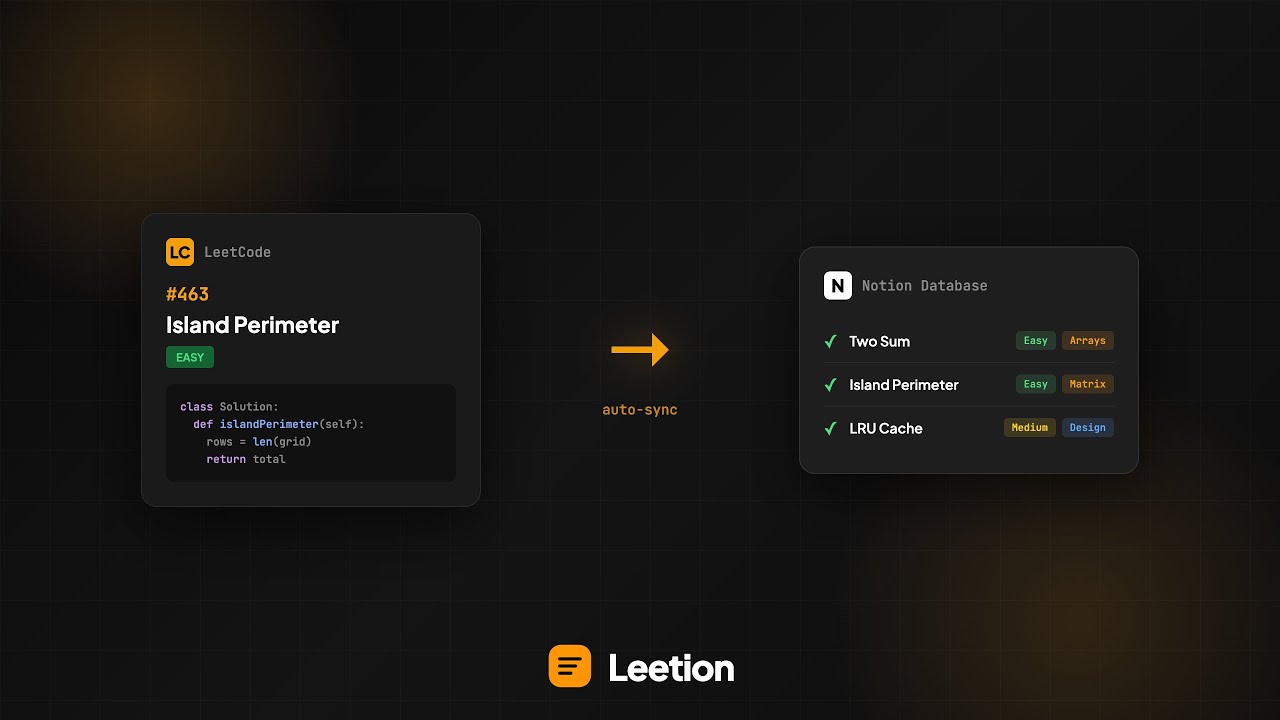
- One-Click Save - Capture your LeetCode solutions directly to Notion
- Multiple Snapshots - Save different versions/approaches of your solution
- Auto-Tagging - Automatically detects problem tags (Arrays, DP, Trees, etc.)
- Spaced Repetition - Get reminded to review problems for better retention
- Complexity Tracking - Record time and space complexity with suggestions
- Rich Notes - Add personal notes, alternative methods, and remarks
- Form Persistence - Your unsaved work is preserved across sessions
- Visit the Chrome Web Store page
- Click "Add to Chrome"
- Follow the setup instructions below
- Visit the Firefox Add-ons page
- Click "Add to Firefox"
- Follow the setup instructions below
- Clone this repository
- Open your browser's extension page:
- Chrome:
chrome://extensions - Firefox:
about:debugging#/runtime/this-firefox
- Chrome:
- Enable "Developer mode" (Chrome) or click "Load Temporary Add-on" (Firefox)
- Load the extension folder
- Go to Notion Integrations
- Click "New integration"
- Name it "Leetion" and select your workspace
- Copy the "Internal Integration Token"
Create a new database in Notion with these properties:
| Property | Type | Required |
|---|---|---|
| Name | Title | Yes |
| Number | Number | Yes |
| Difficulty | Select (Easy/Medium/Hard) | Yes |
| Tags | Multi-select | Yes |
| Status | Checkbox | Yes |
| Expertise | Select (Low/Medium/High) | Yes |
| Time Complexity | Rich Text | Optional |
| Space Complexity | Rich Text | Optional |
| Attempts | Number | Optional |
| Notes | Rich Text | Optional |
| Remark | Rich Text | Optional |
| Alternative Methods | Rich Text | Optional |
| Date | Date | Optional |
| Review | Date | Optional |
| URL | URL | Optional |
- Open your Notion database
- Click "..." menu → "Connections" → Add your "Leetion" integration
- Copy the database ID from the URL:
https://notion.so/workspace/DATABASE_ID?v=...
- Click the Leetion extension icon
- Enter your API key and Database ID
- Click "Save Settings"
- Navigate to any LeetCode problem
- Write your solution in the editor
- Click the Leetion extension icon
- Click "Save Solution" to capture your current code
- Fill in optional details (complexity, notes, etc.)
- Click "Save to Notion" to sync everything
Tips:
- Use multiple snapshots to save different approaches
- The form auto-saves locally, so you won't lose work
- Spaced repetition dates are calculated automatically
- Tags are auto-detected from LeetCode's problem tags
leetion/
├── manifest.json       # Extension configuration
├── popup.html          # Popup UI markup
├── popup.js            # Main popup logic & event handling
├── background.js       # Service worker for Notion API calls
├── content.js          # Content script for LeetCode pages
├── styles.css          # Popup styling
├── onboarding.html     # First-time setup page
├── onboarding.css      # Onboarding styling
├── onboarding.js       # Onboarding logic
├── icons/              # Extension icons
├── build.sh            # Build script for packaging
├── LICENSE             # License file
└── README.md           # Documentation
Contributions are welcome! Feel free to open issues or submit pull requests.
By submitting a contribution, you agree to transfer all rights to your contribution to the copyright holder.
Copyright (c) 2026 Neel Bansal. All Rights Reserved.
This software and its source code are proprietary. You may NOT:
- Copy, redistribute, or republish this software
- Use this code to create derivative works
- Submit this software to any app store or extension marketplace
See the LICENSE file for full details.
